
Saved Elements
Save a row, column, or module for reuse on your site. You can save your row, column, or module as standard or global. When you save an item as global, each instance of it that you drag into any page on your site is linked to all other instances. Any change you make to one instance will update all instanced and the global saved version. If you save an item as standard, each instance in your layout is independent of the centrally saved row or module and from any other instance of it. In other words, once you drag a standard row or module into your layout, it’s just like any other row or module at that point.
How to Insert a Saved Element
If you’ve already created the row, column, or module that you want to use on your page, follow these instructions.
- Open the page that you want to edit.
- Open the Content Panel (plus icon).
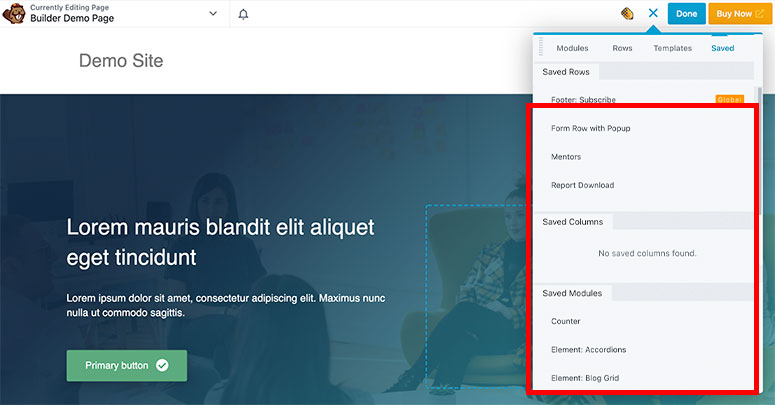
- Click the “Saved” tab to see all the elements available for use.
- Drag-and–drop the saved element into your layout and edit as needed.
How to Create a Saved Element
If you’ve already created the row, column, or module that you want to save for reuse, follow these instructions.
- Open the page that contains the row, column, or module you want to save.
- Open the row or module for editing by clicking the wrench tool.
- Click Save as.
- Enter a name for your saved module, decide if it will be standard ( No ) or Global ( Yes ) and click Save.
Your saved rows and columns can be available for use on both the Rows tab and the Saved tab in the Content panel. Saved modules are accessed on the Saved tab of the Content panel.