Google Analytics
Last Update: 5 August 2018Your website has been setup with Google Analytics tracking. Typically, your Google Analytics UA Code is added to your site via a plugin. This allow your site to be easily connected to your GA account and provides a quick look at your statistic from the backend of WordPress without needing to log in to your Google Analytics account.
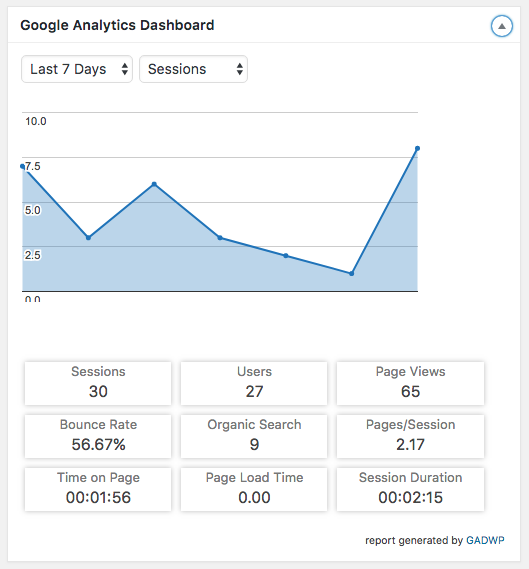
For a comprehensive look at your sites tracking statistics or to setup Google AdWords/Goals/Etc. – login to your Google Analytics account directly.
*If you remove the Google Analytics plugin from your WordPress website, this will remove the tracking code resulting in a loss of data.
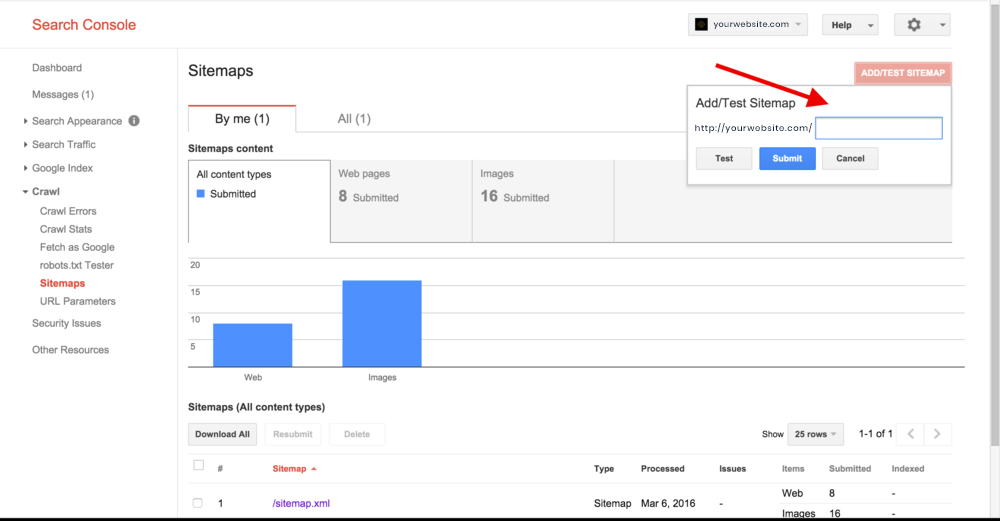
If you’ve recently updated several pages worth of content on your site or have recently had your website completely redone (including your website content) then it is our recommendation that you resubmit your website to be indexed and submit a new Sitemap XML file to Google’s Search Engine. You can do this by through the Google Webmaster tools.
Generate a Sitemap:
- Go to Dashboard > SEO > General
- Locate the section titled XML Sitemaps
- Click the ? icon next to the title
- From the dropdown, select See the XML Sitemap
- This will open a new tab with a list of your sitemaps
- Copy the URL for the pages, it should look like this…
– https://yourwebsitename.com/page-sitemap.xml - From the Sitemap section in Google Webmaster, paste the above URL (excluding the section of the URL that is not bolded in our example)