
Accessing the Page Builder
Last Update: 2 December 2025Static pages are used to refer to any page which is accessible from the main menu or that may not be listed in the main menu but are accessible via a button/link on another page (excluding links to 3rd-party sites). All the pages within your site are built using the Beaver Builder page builder tool. This enables you to easily create, edit and manage your site content. See instructions below on how-to access the page builder editor and how-to use the page builder tools provided.
Some static pages may contain what we refer to as “Dynamic Content” which is content added from a designated section in the backend portal and then populated onto a whole page or section of a page. On your site, this would be Blog Posts, School Calendar Dates, and Job Listings. See those specific sections in the manual for instruction on how to manage.
Access the Page Builder
→ From the Pages List
Mouse over a page in the Pages > All Pages list, then click the Beaver Builder link.

→ From the WordPress Block Editor
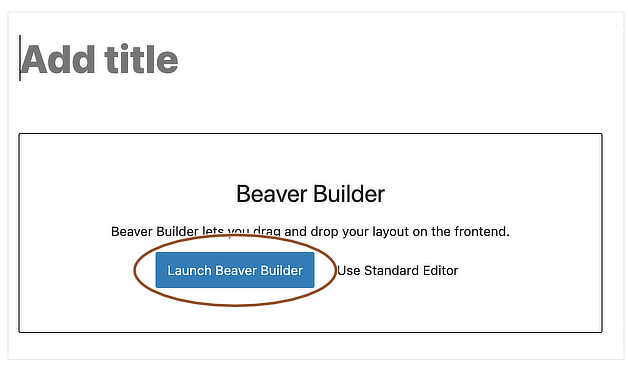
When you create a page or open an existing page in the WordPress block editor, you’ll see the choice of Launch Beaver Builder or Use Standard Editor, as shown in the following screenshot. *Do not click Standard Editor as this will remove all of the page styling that has been created through Beaver Builder.
→ From the Admin Bar
If you’re viewing a page on the front-end of your site while logged in, the WordPress admin bar will appear across the top of the site. You can click the Beaver Builder link to edit the page you’re viewing.

When a Beaver Builder layout already exists for the page, the Beaver Builder link is followed by a green button, as you can see in the screenshot. When a Beaver Builder layout hasn’t been created yet, it’s followed by a pale gray button.