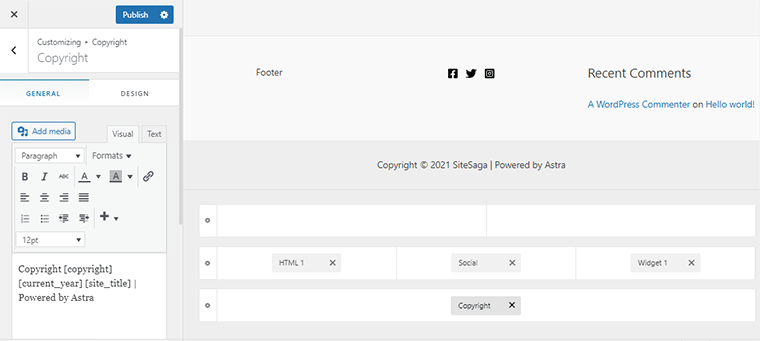
Site Header (Menu & Buttons)
Last Update: 2 December 2025Your site header is made up of multiple components, including a site menu (navigation), buttons/links, and/or plain text. See instructions below on how to manage each of these elements.
Site Menu
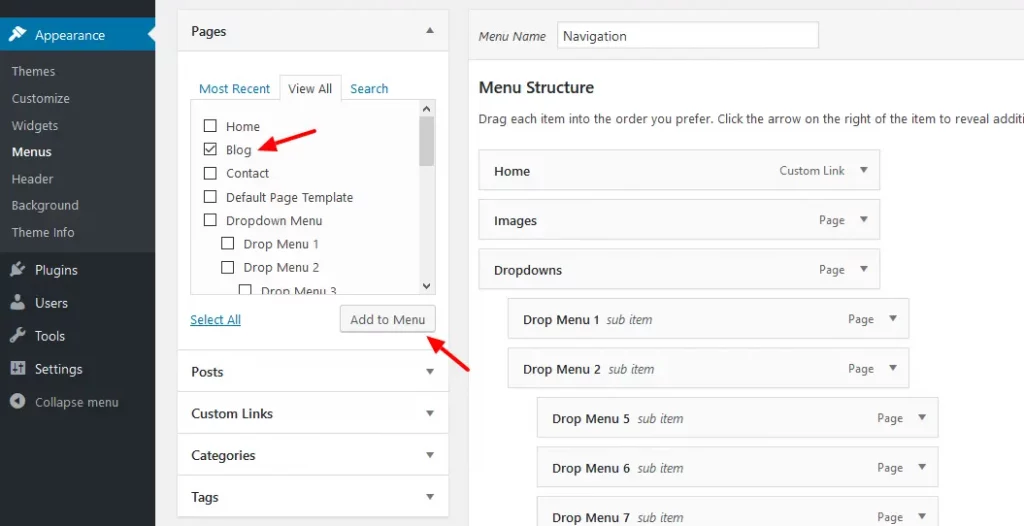
Your site menu is the main navigation links which are displayed across the top of your site and allow users to access the main sections/pages of your site. Menu items are managed from under Appearance > Menus.
First select a menu to edit. The menu located in the header specifically, may be titled “Main Menu”, “Site Navigation”, etc.

After you have selected your menu you can add, remove, or rename* items within the menu.
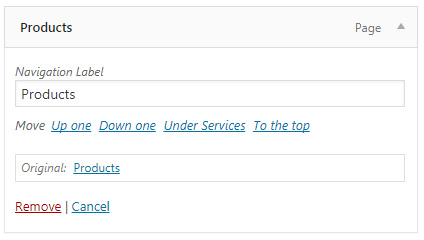
*Renaming a link in the menu does not rename the page or change the page URL, this feature is only useful if you want to display a short name or alternative name for a link (i.e. changing Events Calendar to only Calendar).
Header Links & Buttons
Your site may contain additional links/buttons or plain text. Header elements are managed from under Appearance > Customizer.
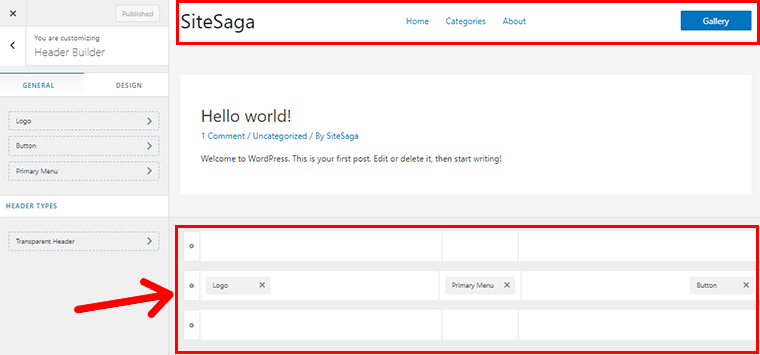
Begin by selecting the Header Builder.
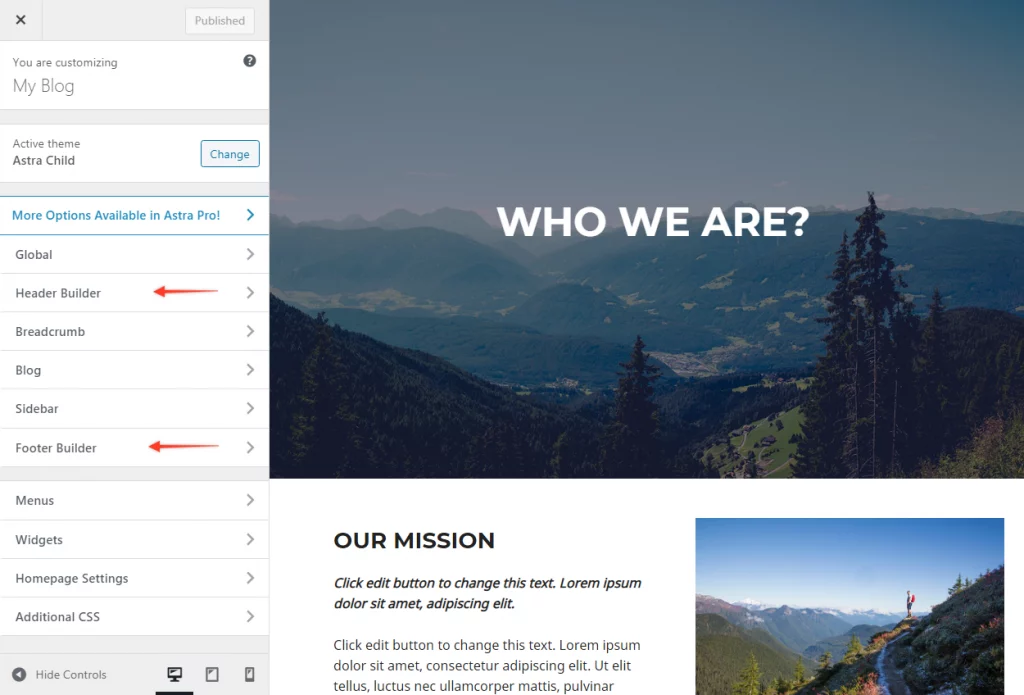
This will display a grid view of the header elements across the bottom of the site (as seen in image one below). You can click on one of the blocks to open the settings –OR – click the pencil icon next to the button or link you wish to edit and the settings window will appear on the right (as seen in image two below).
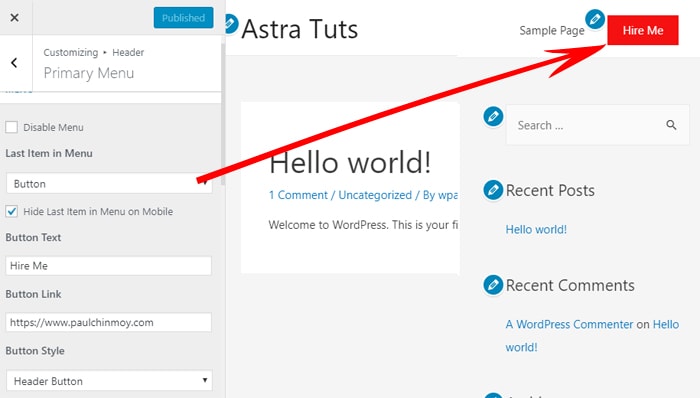
If the module you selected is a button, you will see an option to change the Button Text and/or Button Link. If the module you selected is a text widget with a link inside of it, it will look like the image below. To edit a link within the widget, place your cursor within the link and click to edit or remove the link.