Create a New Page
Last Update: 2 December 2025Start by navigating to the Pages section of the WordPress Dashboard, from there click “Add Page”. Alternatively, you can choose to hover over an existing page and click “Duplicate Page” to have a starting point. If duplicating don’t forget to update the Page Title and Page Slug/Permalink. Also note, that new pages are not automatically added to the site navigation – use the Site Menu section for instruction on how to add your page to the menu.
Start a Blank Page with a Template
If you opt to start a new blank page, it’s still recommended that you drop in an existing page template as a starting point.
Starting with a saved template ensures you’re page will contain the correct styling to match the other pages within your site. A pre-made template may contain more or less modules/sections than you need, but you can easily add or remove to create the desired layout.
If you do not see a template for the elements you want to use, you can easily save a New Template. See instructions below on how to “Save Page Template“.
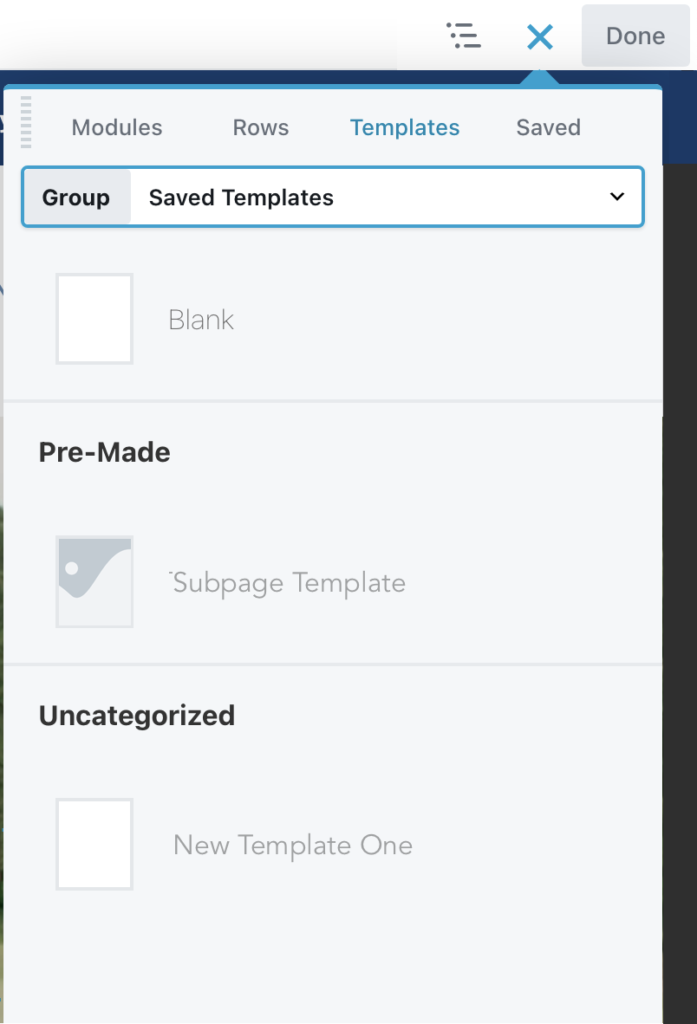
- Open the Content panel and click the Templates tab.
- Click on the layout template you want to use as a starting point ( you can also save a New Template using the instructions just below).
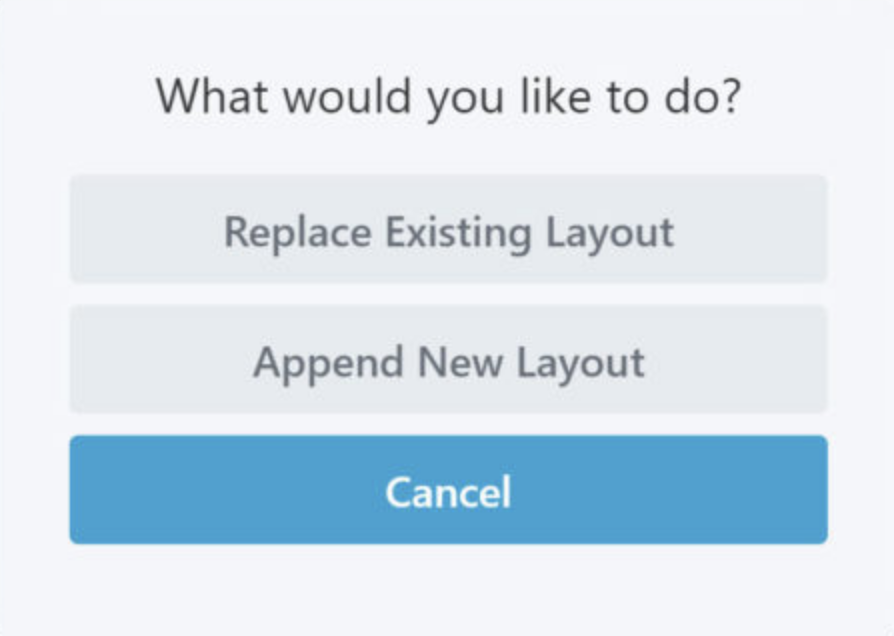
- If the page or post layout already has content, you’ll get a choice of replacing the existing layout or appending the new layout
Save a Page Template
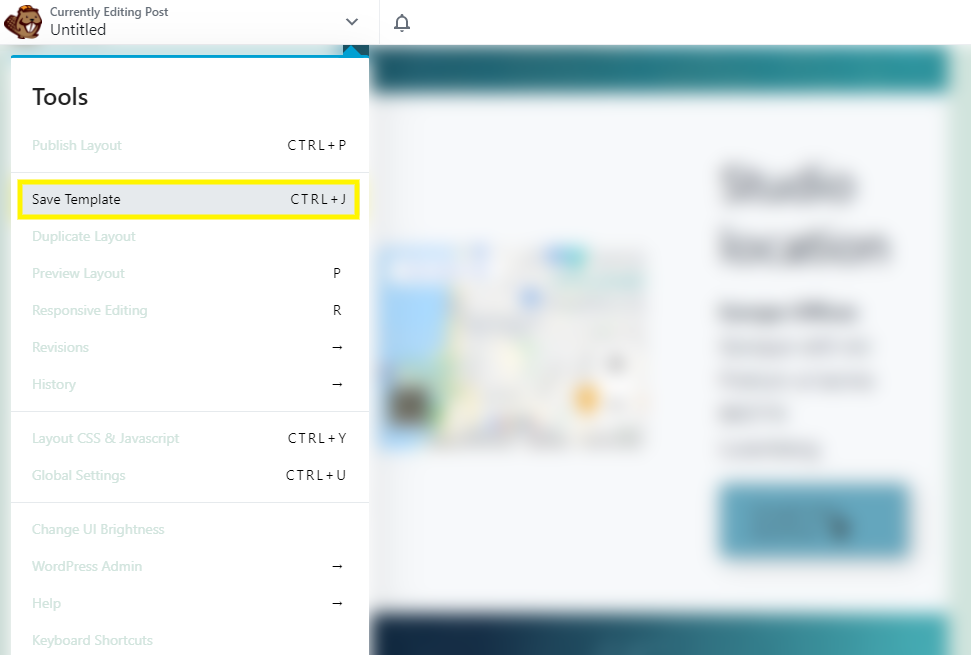
Save a new template by clicking the drop-down menu in the top left-hand corner of the screen to display the Tools menu, then click Save Template: